
Admin Panel
Manage system functions and settings
1. System Control
Section titled “1. System Control”Exaplan provides a system management and automation interfaces where you have:
- 4 preset buttons:
- System Restart, OFF
- Projectors ON, OFF
- Up to 6 custom buttons
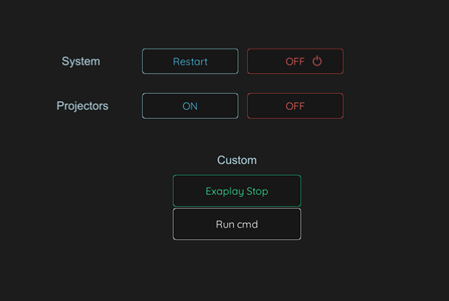
The configuration file for the panel is located in:
"C:\Exaplan\Exaplan_Data\StreamingAssets\Exaplan_AdminControlPanel.json"
The syntax for the admin panel components is explained below:
| Class | Parameters |
|---|---|
| admin |
|
| projectors | list of projector IP addresses to be used with pjlink commands |
| pjlinkPort | Port for pjlink communication with projectors. Default is 4352 |
| defaultButtons | the 4 default buttons for turning ON/OFF the system and projectors. |
| customButtons | add up to 6 extra buttons with custom commands. |
Buttons syntax:
| Button Parameter | Description |
|---|---|
| label | Custom name for the button that will be visible on the interface. |
| color | Color of the button. Options are: red, blue, green, yellow, magenta, white. |
| type |
|
Example:
{ "admin": { "pinLock": false, "pin": "1234" }, "projectors": ["192.168.49.101","192.168.0.103","192.168.0.102"], "pjlinkPort": 4352, "defaultButtons":[ { "label": "System Restart", "color": "blue", "type": "system", "command": "shutdown -r" }, { "label": "System OFF", "color": "red", "type": "macro", "commands": [ { "type": "system", "command": "shutdown /s /t 5" }, { "type": "pjlink", "command": "POWR 0" } ] }, { "label": "Projectors ON", "color": "blue", "type": "pjlink", "command": "POWR 1" }, { "label": "Projectors OFF", "color": "red", "type": "pjlink", "command": "POWR 0" } ], "customButtons": [ { "label": "Exaplay Stop", "color": "green", "type": "exaplay", "ip": "192.168.49.101", "port": 8100, "command": "stop,comp1" }, { "label": "Run cmd", "color": "white", "type": "batch", "path": "C:\\\\Exaplan\\\\Exaplan_Data\\\\StreamingAssets\\\\Demo_Data\\\\template.bat" } ]}2. Settings
Section titled “2. Settings”
These options affect performance, visual clarity, and workflow automation.
Layers
Section titled “Layers”| Setting | Description |
|---|---|
| Import layer setting (Performance ↔ Quality) | Moving toward Performance reduces import time and increases responsiveness. Moving toward Quality increases visual quality and precision. |
| Enable PDF/DXF background transparency | Plans are imported without a background. Note: vector drawings with black lines, will show black on black background, so make sure you use color effects or a different interface background (white, grid) |
| Enable file Watcher (Layer 0) | Startup behavior for the file watcher system. |
Interface Camera
Section titled “Interface Camera”| Setting | Description |
|---|---|
| Interface zoom range (min – max) | Controls how far users can zoom in or out when navigating the plan in the interface. Does not affect projection. |
| Clear default | Resets the saved startup camera parameters to system default values. |
| Save current as default | Saves the current UI camera position and zoom as the startup default for future sessions. |